Why You Need an Online World Clock (and How to Use One)
An online world clock shows the current time across multiple cities at once — far faster than mental math. Here are the best use cases and how to set one up.
- world clock
- time zones
- remote work
- scheduling
- tools
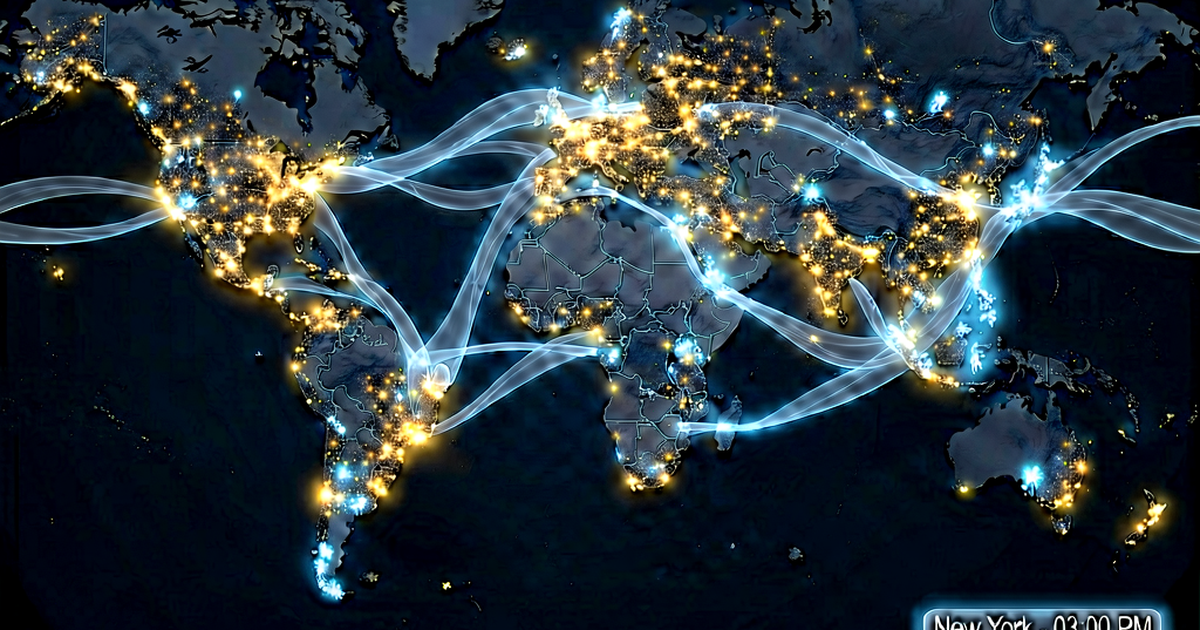
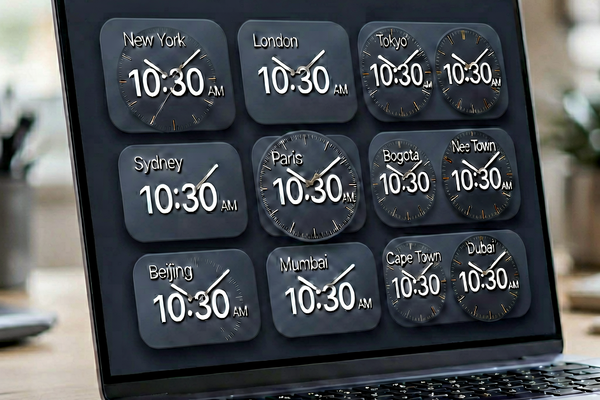
Knowing “London is 5 hours ahead” works until daylight saving transitions on different dates, until you need to check three zones at once, or until you forget whether that mental offset is for winter or summer. A world clock removes the mental arithmetic entirely.
What a World Clock Actually Shows
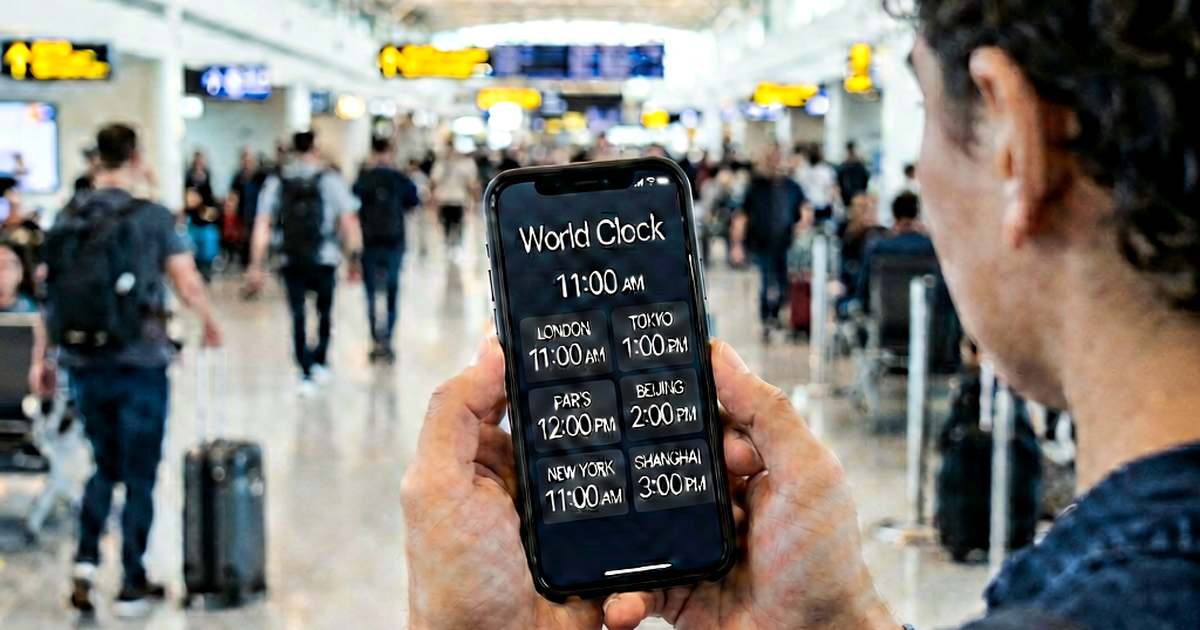
An online world clock displays the current local time in multiple cities or time zones simultaneously, updated in real time. The key word is simultaneously — rather than looking up one city at a time and trying to hold multiple times in your head, you see all of them at once in a single view.
Some world clocks also include the date alongside the time, which matters more than it sounds. At 11 PM in New York, it’s already tomorrow morning in Tokyo. Confirming the date alongside the time prevents one of the more embarrassing scheduling errors — proposing a meeting for “Thursday at 9 AM Tokyo time” when your Thursday is their Friday.
worldclock.io is built around this exact use case: add the cities your work touches, and see all of their current times in one place without any conversion math.
Common Use Cases
Remote team standups: If your team spans three or four cities, a world clock is the first thing to check before proposing a meeting time. Add every city where a team member is located and scan for the window where everyone falls within business hours. What looks like “9 AM” in your timezone could immediately show you it’s already 11 PM for a colleague.
International client calls: You’re scheduling a call with a prospect in Singapore. You know you’re UTC-5 and Singapore is UTC+8, so that’s 13 hours. But wait — is it currently EDT or EST? Is it currently SGT or is there a daylight offset in Singapore? (There isn’t — Singapore stays at UTC+8 year-round.) A world clock surfaces the correct current local times without requiring you to remember all these details.
Travel planning: When you’re booking flights or planning an itinerary, a world clock helps you orient around local times at your destination. It’s especially useful for figuring out whether your arrival time lands in the middle of the night, and for planning when to call home to avoid waking family members.
Gaming with international friends: Online gaming communities are international by default. If you want to coordinate a session with friends in Europe and Australia, a world clock helps you quickly find a window where no one is being asked to play at 4 AM.
Monitoring remote servers: Developers and operations teams often track UTC alongside their local time to make sense of server logs. Adding UTC to a world clock display means you can instantly see what a log timestamp means in your own day — without doing UTC arithmetic in your head.
How to Choose Which Cities to Track
You don’t need to add every city on Earth — a short, relevant list is easier to scan than a long one. A useful starting point:
- Your own location — obvious, but include it so you’re comparing relative to something you know
- Your most frequent contacts — add cities where key clients, teammates, or partners are located
- UTC — if you deal with server times, API timestamps, or do any technical scheduling, having UTC visible saves constant conversion work
- One or two major hubs — New York and London are the most common business reference points globally; Tokyo or Sydney are useful if you work with Asia-Pacific
For most remote workers, five to eight cities is the sweet spot. Fewer and you’re missing useful comparisons; more and the display gets cluttered enough that you lose the clarity benefit.
The “Dead Zone” Problem
Once you add multiple cities to a world clock, you’ll quickly discover the dead zone problem: the set of hours where at least one city’s time falls between roughly 11 PM and 7 AM — outside any reasonable working window.
For certain combinations, there is simply no overlap during conventional work hours:
- New York + Sydney: A 9 AM New York start is 11 PM in Sydney. The only overlapping “work hours” window would require New York to start very early (around 7–8 AM ET, which is 9–10 PM in Sydney) or Sydney to work late. There is no comfortable overlap.
- San Francisco + Kolkata: A 9 AM San Francisco start is 10:30 PM in Kolkata. Overlap requires significant sacrifice from at least one side.
Seeing this clearly in a world clock — rather than doing the math and hoping you got it right — helps you make better decisions. If there’s no workable overlap, it’s a signal to default to asynchronous communication: email, recorded video, collaborative documents, or structured async tools. Trying to force a real-time meeting when the timezone math makes it genuinely inconvenient for one party is a recurring friction point in remote teams, and a world clock makes the constraint visible.
Why Mental Math Isn’t Reliable
Experienced remote workers often feel confident they know the offsets they work with regularly. And often they’re right — until a DST transition shifts things by an hour and nobody noticed. The US and EU change clocks on different weekends each spring and fall, creating a two-week window where the usual US-to-Europe offset is temporarily wrong.
A world clock handles DST transitions automatically, always showing the current correct local time regardless of what’s happening with offsets. You don’t need to remember that Europe changed last Sunday but the US won’t change until this Sunday — the tool already knows.
Using worldclock.io
worldclock.io shows real-time local times across any cities you want to track. You can add cities from a searchable list, see the current time for all of them at a glance, and use it as a quick reference before sending any meeting invitation or scheduling any event.
The workflow is straightforward: before you send a calendar invite or write a message suggesting a meeting time, open your world clock, check that the proposed time is reasonable for every zone involved, and confirm the dates match. The entire check takes about fifteen seconds — far less than the time you’d spend apologizing for a scheduling mistake.
For anyone who regularly works across time zones, a world clock isn’t a luxury. It’s the same category of tool as a currency converter or a unit converter: something that removes a class of preventable errors entirely.
Related reading
-
How to Schedule Meetings Across Time Zones Without the Confusion
Time zone math is error-prone. Here's a practical system for scheduling meetings with remote and international teams — including DST traps and overlap strategies.
-
Daylight Saving Time Explained: Why It Exists and How It Works
Daylight saving time shifts clocks forward in spring and back in fall. Here's the real history, which countries use it, and why software engineers dread it.
-
US Time Zones Explained: All 6 and What States They Cover
The US has 6 standard time zones — ET, CT, MT, PT, AKT, and HT. Here's which states fall where, their UTC offsets, and the notable exceptions worth knowing.