How to Schedule Meetings Across Time Zones Without the Confusion
Time zone math is error-prone. Here's a practical system for scheduling meetings with remote and international teams — including DST traps and overlap strategies.
- time zones
- remote work
- scheduling
- productivity
- DST

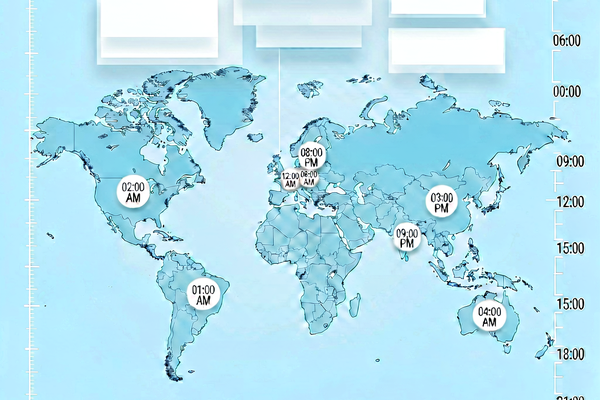
Scheduling a meeting when half your team is in New York and the other half is in London sounds simple. You’ve done it before. And yet, at least once, someone has dialed in an hour early or an hour late — often right after clocks changed somewhere.
Time zone arithmetic breaks down more often than it should. This guide gives you a reliable system for getting it right every time.
Why Time Zone Scheduling Goes Wrong
The core problem is that time zone offsets aren’t fixed. They shift seasonally — twice a year in most of the US and Europe, on different dates in each region. The US and EU don’t move their clocks on the same weekend, which means there’s a window of about two weeks each spring and two weeks each fall when the offset between New York and London is temporarily one hour different from what you expect.
Add to this that many calendar apps display times in your local zone by default, but don’t always make it obvious when a remote participant will see something different. The human brain wants to shortcut the math, and shortcuts cause missed meetings.
Always Anchor to UTC When in Doubt
The cleanest workaround for time zone confusion is to anchor every cross-zone meeting to UTC — Coordinated Universal Time. UTC has no daylight saving offset. It never changes. When you say “the call is at 15:00 UTC,” everyone on Earth knows exactly when that is, regardless of where they are or what time of year it is.
This doesn’t mean you communicate the meeting to teammates in UTC. It means you verify the converted times by checking against UTC first, then communicate local times. A world clock tool that shows multiple cities simultaneously makes this trivial: set New York, London, Tokyo, and UTC side by side, and you can see immediately whether your proposed time puts anyone in the middle of the night.
Include Both Time Zones in Every Invitation
A simple habit that eliminates most scheduling confusion: when you share a meeting time, always include both the sender’s local time and the recipient’s local time. Instead of writing “Let’s meet at 3 PM my time,” write “Let’s meet Thursday at 3 PM ET / 8 PM GMT.”
Most calendar apps let you add a second time zone to events. Use this feature. The moment a recipient sees their own time zone written out, they can verify the math themselves without having to Google it — and if you got it wrong, they’ll catch it immediately rather than an hour before the call.
Watch Out for DST Transition Windows
Daylight saving transitions create a two-to-three-week window each spring and fall where your usual offsets don’t hold. Here’s what happens:
The US moves its clocks on the second Sunday of March. The EU moves clocks on the last Sunday of March. That gap between the two Sundays — usually about two weeks — is when the US-to-EU offset is temporarily one hour shorter than usual. In autumn, the same asymmetry happens in reverse, with the EU rolling back before the US.
If you have a recurring meeting with European colleagues, check your calendar the week before each transition. If the meeting was scheduled during a non-DST period, it may now appear at the wrong local time for one side.
Similarly, not all regions in the US observe DST. Arizona (except the Navajo Nation) stays on Mountain Standard Time year-round. Indiana spent decades with irregular DST adoption before standardizing in 2006. When dealing with teammates in those areas, don’t assume your usual US offset applies.
Find the Overlap Window for Global Teams
If your team spans more than two continents, you may not have a single time that works comfortably for everyone during business hours. Before giving up, map the “overlap window” — the set of hours when all zones simultaneously fall within a reasonable working period (typically 8 AM to 7 PM).
A few example overlap windows:
- New York + London: Strong overlap from 9 AM to 1 PM ET (2–6 PM GMT)
- New York + Singapore: Thin overlap, roughly 8–10 AM ET (8–10 PM SGT); requires one side to take an early or late call
- London + Sydney: Almost no same-day overlap during standard hours. A 9 AM Sydney call is 11 PM London the night before
When no comfortable overlap exists, that’s useful information. It tells you the meeting is genuinely inconvenient for someone, and you should either rotate who takes the uncomfortable time slot or rethink whether the meeting needs to happen synchronously at all.
Tools That Do the Work
Manual time zone math is unnecessary. Several tools will show you multiple time zones at once and highlight the hours that fall within business hours for all participants.
worldclock.io lets you add any city or time zone and see all of them simultaneously — useful for quickly spotting whether 10 AM in one city puts another city at an unreasonable hour. You can also use it to sanity-check a meeting time you’ve already chosen.
Beyond a world clock, calendar apps with time zone support (Google Calendar, Outlook) will convert event times automatically for attendees — as long as attendees have set their time zone correctly in their account settings. This is worth double-checking for onboarding new remote colleagues, since incorrect account time zones are a common source of calendar chaos.
When Synchronous Doesn’t Work, Go Async
If your overlap window is genuinely too small, or falls outside normal hours for too many people, the right answer often isn’t a 6 AM call someone has to take from bed — it’s an asynchronous update instead.
A shared document with a status update, a recorded video walkthrough, or a structured thread in your team communication tool can replace many meetings that people assume require real-time attendance. Reserve synchronous meetings for decisions that genuinely require back-and-forth discussion in the moment.
When you do need everyone at once, rotate the inconvenient time slots fairly. If your team alternates who takes the early-morning or late-evening slot, the burden is shared rather than consistently falling on the same people.
A Practical Checklist
Before sending any cross-zone meeting invitation:
- Confirm the time in UTC to get a neutral anchor
- Verify the local time for each participant using a world clock tool
- Check whether any transitions (DST changes) fall between now and the meeting date
- Include both your local time and each recipient’s local time in the invite or message
- Add a world clock or time zone conversion link if participants may be unfamiliar with the math
Time zone scheduling is one of those problems that seems trivial until it costs you a meeting. A small amount of deliberate process eliminates almost all of the friction.

Related reading
-
Daylight Saving Time Explained: Why It Exists and How It Works
Daylight saving time shifts clocks forward in spring and back in fall. Here's the real history, which countries use it, and why software engineers dread it.
-
Why You Need an Online World Clock (and How to Use One)
An online world clock shows the current time across multiple cities at once — far faster than mental math. Here are the best use cases and how to set one up.
-
EST vs EDT: What's the Difference and When Does Each Apply?
EST is UTC-5 and EDT is UTC-4. The switch happens twice a year with daylight saving time. Here's what each abbreviation means and why the distinction matters.